
Camera setup · Uniview
Connect a Uniview camera to VISEC.
Uniview (UNV) cameras have ONVIF switched on from the factory, so most appear in VISEC's scan straight away. What differs between firmware versions is how ONVIF signs in.
Download VISEC free
One camera free for life · Windows 10 & 11 · no card, no email.
First, try the easy way
Press scan.
VISEC searches your network for ONVIF cameras and lists what it finds. If your Uniview camera already has ONVIF switched on, it appears here and you are watching live in a few seconds — nothing below is needed.
Signing in over ONVIF
If the camera does not appear.
Menu names move around between firmware versions, so treat these as the place to look rather than an exact path.
-
Open the camera in a browser
Enter the camera's IP address and sign in as admin.
-
Check the ONVIF settings
Look under Setup › Network › ONVIF. ONVIF is on by default; some firmware sets a separate ONVIF password here.
-
Check ONVIF authentication
Under System › Security, firmware with an ONVIF Auth option requires a user name and password for every ONVIF connection. Leave it on and use the camera's credentials in VISEC.
-
Scan from VISEC
Press scan, pick the camera and sign in.
PortsONVIF on the HTTP port, normally 80, and RTSP on 554.
StreamsUniview's Ultra 265 and U-Code are proprietary. Use standard H.264 or H.265 for the stream VISEC records.
Still not found?Confirm the camera and PC are on the same subnet.
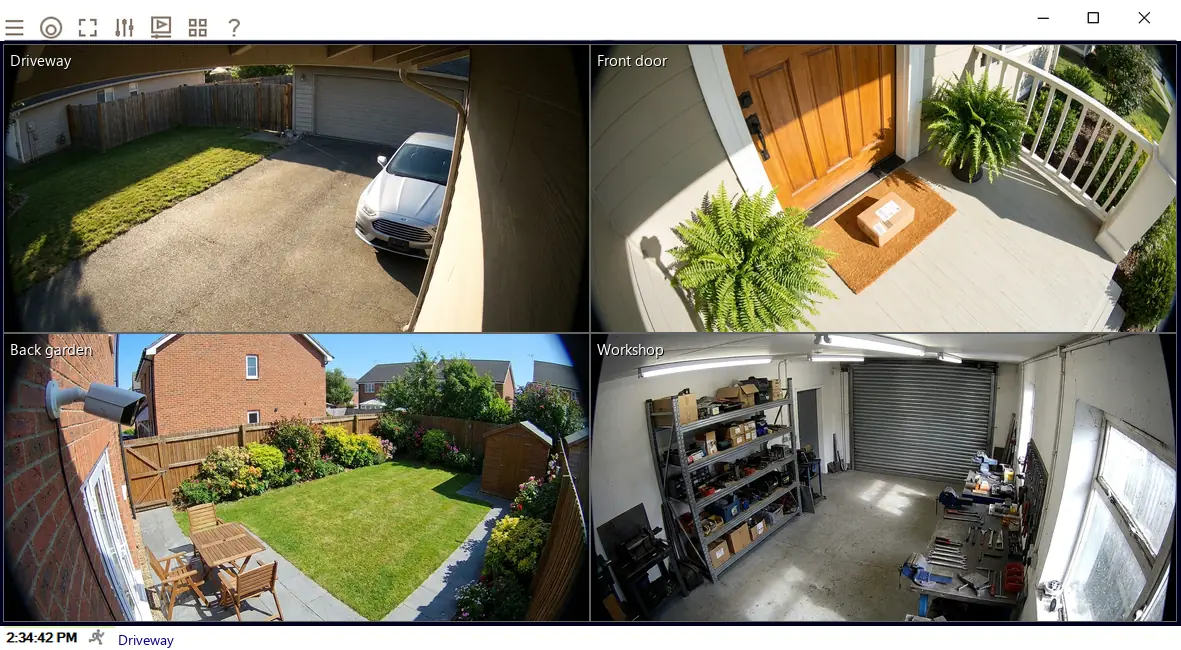
Once it is connected.
- Watch it liveOn its own or beside your other cameras, across up to 8 monitors.
- Record on motionChoose the part of the picture that matters and how sensitive it should be.
- Get an emailA snapshot the moment motion starts, so you know without watching.
- Read number platesPlate recognition is included in every license, including the free one camera license.
Try it on your Uniview camera tonight.
The complete software, free for life on one camera. No card, no email, no trial clock.