
Camera setup · TruVision
Connect a TruVision camera to VISEC.
TruVision cameras are widely installed and several models are rebadged from other manufacturers' platforms, so they behave like them - including the habit of keeping a separate user account for ONVIF. That lineage is handy when documentation is hard to find: the equivalent model from the original maker usually describes the same screens.
Download VISEC free
One camera free for life · Windows 10 & 11 · no card, no email.
First, try the easy way
Press scan.
VISEC searches your network for ONVIF cameras and lists what it finds. If your TruVision camera already has ONVIF switched on, it appears here and you are watching live in a few seconds — nothing below is needed.
Getting it connected
If the camera does not appear.
Menu names move around between firmware versions, so treat these as the place to look rather than an exact path.
-
Open the camera in a browser
Sign in with the administrator account. Run VISEC's scan first if you do not know the address.
-
Enable ONVIF or the integration protocol
Look under the network settings. On platforms shared with other brands this is often called Integration Protocol.
-
Add an ONVIF user
Add a user on that same page and note the details, because the admin account alone may not authenticate over ONVIF.
-
Scan from VISEC
Press scan, pick the camera and sign in with the ONVIF user.
PortsHTTP 80, RTSP 554.
Firmware availabilityThese cameras are mature and new firmware may no longer be published, which makes a standards-based ONVIF or RTSP connection more valuable rather than less - it does not depend on the vendor.
Recorder channelsIf the cameras are wired to a TruVision recorder, VISEC can often read the recorder's RTSP channels, or you can connect the cameras directly.
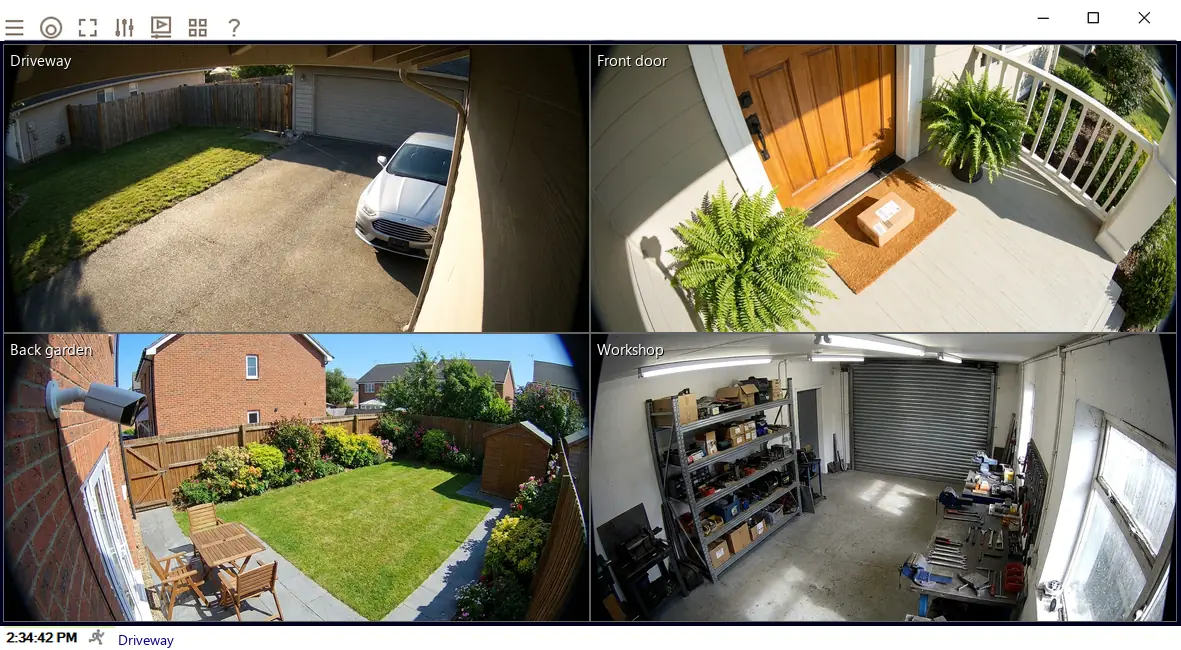
Once it is connected.
- Watch it liveOn its own or beside your other cameras, across up to 8 monitors.
- Record on motionChoose the part of the picture that matters and how sensitive it should be.
- Get an emailA snapshot the moment motion starts, so you know without watching.
- Read number platesPlate recognition is included in every license, including the free one camera license.
Try it on your TruVision camera tonight.
The complete software, free for life on one camera. No card, no email, no trial clock.